
A budget app should help you spend less intentionally—not become one more recurring charge to remember. If you are looking for a budget app without a subscription, price matters, but it is only one part of the decision. The right app also needs a routine you will actually maintain, enough detail to answer your money questions, and privacy choices that fit your comfort level.
Start with the budgeting routine, not the feature list
Before comparing apps, decide what you want to know. Do you need to see how much is left for groceries? Remember recurring bills? Review where your money went at the end of the month? Track whether your combined account balances are improving?
An app that answers those questions clearly is more useful than one with dozens of features you never open. A simple routine might be: set monthly category limits, record purchases, check what remains before spending, and review the result at month-end.
1. Confirm that “no subscription” really means no recurring fee
App pricing can include a free download, a trial, monthly or annual plans, or a one-time unlock. Read the App Store listing carefully and check which features are included. A one-time-purchase budget app is easiest to compare when the price and included features are clear from the start.
Wise Budget uses a single App Store purchase rather than a monthly or annual subscription. Pricing can vary by region, so the current local price is always the one shown on the App Store.
2. Choose between bank sync and manual tracking
Automatic bank sync can reduce data entry, but it is not required to build a useful budget. A manual budget app lets you decide which accounts and purchases to include without connecting a bank login. The tradeoff is deliberate: you add or review your own entries.
For many people, that small action is part of the value. Recording an expense keeps the budget visible instead of turning it into a report you only notice later. If manual entry sounds tedious, look for shortcuts such as receipt scanning and automatic recurring entries.
3. Make sure the monthly budget is easy to read
A useful budget screen should make three numbers obvious: the amount planned, the amount spent, and the amount remaining. You should be able to check a category before a purchase without interpreting a complicated dashboard.
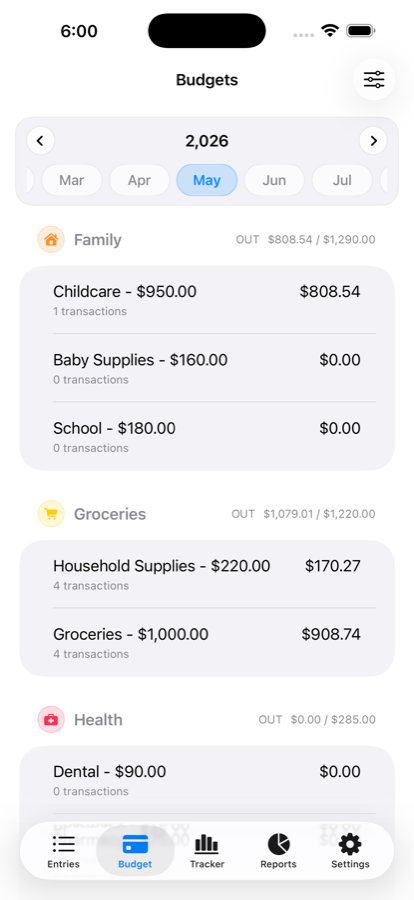
Category limits also need to reflect real life. Groceries, dining, transport, hobbies, and household costs do not behave the same way. Separate limits help you adjust one area without losing sight of the whole month. If groceries are your first priority, use this step-by-step monthly grocery budget guide.
4. Look for recurring entries and fast expense capture
Rent, paycheques, insurance, and subscriptions repeat. Re-entering them every month creates busywork and makes it easier to fall behind. A good personal budget app should let you plan recurring income and expenses, then choose which entries need confirmation.
Everyday purchases should be quick too. Wise Budget supports manual entries as well as receipt scanning, including the option to review details and split a receipt across categories before saving it.
5. Check reports, account tracking, and backups
Staying under one category limit is helpful, but it does not tell the entire story. Reports should help you compare income and expenses, spot changes by category, and understand net movement. If you use several accounts, a combined monthly view can show whether your overall position is improving. See how that works in the guide to tracking account balances month by month.
Also check what happens if you replace your phone or use an iPad. Wise Budget stores budget data on your device, offers optional iCloud sync, and includes manual backup export and import from Settings.
6. Read the privacy policy before adding financial details
Budget data can reveal where you shop, what bills you pay, and how much money moves through your household. Look for a clear privacy policy and find out whether the app requires an account, connects to a bank, or stores data on company servers.
Wise Budget does not require a bank connection. Your budget lives on your device, with optional sync through your own iCloud account. You remain in control of what you enter and what you leave out.
Is a no-subscription budget app right for you?
A one-time-purchase app is a strong fit if you want predictable cost, prefer to track finances without linking a bank, and are comfortable maintaining a short money routine. It may be a weaker fit if automatic transaction imports are essential to you or if you need shared financial planning across platforms beyond iPhone and iPad.
The best budget app is ultimately the one that gives you a clear answer before your next decision: what did I plan, what have I spent, and what can I still use?
Frequently asked questions
Can you get a budget app without a subscription?
Yes. Some budget apps use a one-time purchase instead of a monthly or annual subscription. Check the App Store listing to confirm what is included and whether any features require an additional purchase.
Does a budget app need access to your bank account?
No. A manual budget app can track entries, categories, budgets, and account balances without a bank connection. The tradeoff is that you record or review transactions yourself.
What should a simple budget app include?
Look for quick expense entry, monthly category limits, recurring transactions, useful reports, backups, and a clear privacy policy. The best set of features is the one you can maintain consistently.
Try Wise Budget on iPhone or iPad
Track expenses, plan recurring bills, set monthly budgets, and review your progress without connecting your bank. One-time purchase, no subscription.